
.avif)
The European digital workplace platform for better employee experiences, smarter IT operations, and work without friction.


Solutions
Almost every IT manager has been through this: a spreadsheet tracking device inventory by office, an Active Directory group someone set up three years ago, a ticketing list that gets updated whenever someone remembers to do it. It works for a while. Then a new PC shows up, or someone switches offices, and the list quietly falls out of date until it causes a real problem.
This is one of the gaps Dynamic Workspace Groups are built to close, though many organizations are only scratching the surface of what they can actually do.
This guide covers what workspace groups are, how dynamic groups differ from static ones, and several ways to get more out of them beyond the most common use case.
A workspace group is simply a logical grouping of devices that share some characteristic or criteria. It serves two purposes: monitoring stats across a set of devices as a whole, and running actions on all of them at once instead of going device by device.
There are three types of workspace groups: static, dynamic, and Entra ID (the latter pull directly froman existing group or organizational unit in the organization's active directory). This article focuses on dynamic groups, which tend to raise the most questions and, at the same time, get the least use.
A static group is created manually, with whatever criteria you want. You choose which devices go in, and they stay there until someone edits the group by hand. That works fine when a device list is genuinely fixed, but in practice almost no list is: new devices come in, others get retired, or people change departments or locations.
A dynamic group works differently. Instead of a fixed list, you define a condition, for example "devices with more than 85 percent memory usage" or "devices that haven't rebooted in the last 15 days," and the system evaluates that condition on a regular basis. Membership updates on its own based on which devices meet the criteria at any given moment.
The practical difference comes down to this: with a static group, someone has to remember to keep the list current, and that task usually gets dropped after a few weeks. With a dynamic group, when a new device comes online and meets the criteria, it lands in the right group automatically, with no manual work required.
One technical detail worth knowing: dynamic groups evaluate their condition every 60 minutes, so they're not the right mechanism for detecting user sessions in real time. For everything else (maintenance, security, overall fleet health) that frequency is more than enough.
Ask our clients what the most common use for dynamic groups is, and the answer is nearly always the same: grouping devices by location or site.
That makes sense. When an organization has offices spread across multiple cities, it needs to apply policies, updates, or specific actions to the devices at each site without mixing them up with the rest. Static groups or reporting groups require someone to manually add each new PC as soon as it arrives at that office. With a dynamic group, you define the location criteria once: when a new device is set up, it automatically becomes part of the right group, with zero manual work.
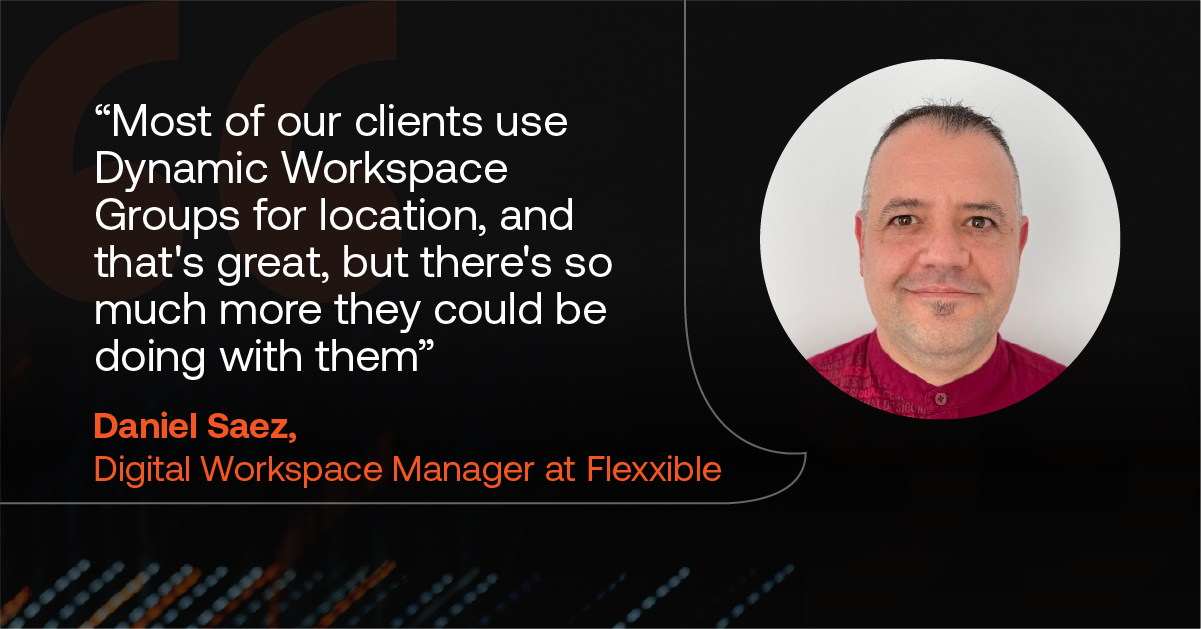
Dani Saez, Digital Workspace Manager at Flexxible, puts it this way: "Most of our clients use Dynamic Workspace Groups for location, and that's great, but there's so much more they could be doing with them."
He's right. Location is the most common entry point, but it's far from the onlycriteria worth automating.
One of the most valuable uses is building lists of devices that need a specificaction: those with a pending reboot, those that have been running for too many days straight, those missing a specific update, or those running low on disk space.
The key here is that this isn't a view you check on occasionally. It's the list you run an action against directly. The dynamic group does the work of identifying which devices meet the condition at any given time, and the IT team just launches the campaign against that group.
Another common use case is isolating devices that are causing trouble before they turn into a support ticket: ones that have stopped reporting in, ones running unusually slow, or ones sitting in a quarantine network. Keeping these devices grouped and self-updating makes it easier to spot patterns, for example, if several problem devices share the same office or model, long before the end user calls support.
This is probably the highest-value use case, and the one getting the least attention today. A dynamic group can filter devices by whether antivirus is installed, whether the disk is encrypted, or whether a threat has been detected recently.
It's exactly the kind of information a security lead needs on hand before an audit, yet it's one of the least-used criteria out there. Having this group already set up and self-updating means you don't have to build that report from scratch every time a review comes around.
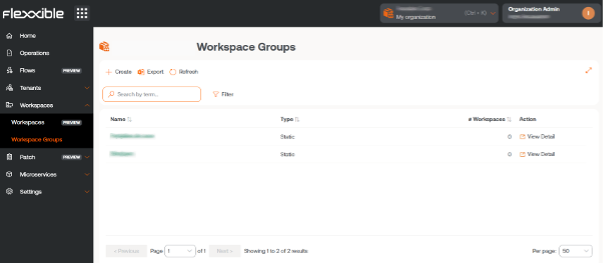
The process is straight forward and always starts with a filter. From the Workspaces view, apply the filter that defines the condition you want (by location, by days without a reboot, by antivirus status, or any other available criteria), then save that result as a Dynamic Workspace Group from the My Filters menu. From there, the system takes care of keeping the group current with no further work needed.
The question isn't whether your organization can group devices. It's what you're missing out on automating by still maintaining lists by hand. If you're already using dynamic groups for location, the next logical step is trying one of the other criteria: maintenance, problem detection, or security.
Here's a simple challenge: create one new Dynamic Workspace Group this week, using acriteria you're not already using. You can find the full technical documentation and step-by-step instructions at docs.flexxible.com.


Book a personalized demo or tell us what’s getting in the way.
We'll find the solution together.