
Wake on LAN (WoL) is older than Google, yet many enterprise IT teams struggle to use it efficiently after all these years.
In their defense, the work environment has changed a lot in that time. IT leaders must now manage thousands of endpoints across physical offices and remote workspaces, which can lead to issues such as:
- Devices that fail to wake on schedule with no warning
- Subnet complexity that makes rebooting machines remotely at scale extremely unreliable
- Manual workarounds failing to fill the gaps that cause friction and discontent for both IT teams and end users.
All of these challenges cost organizations time and money, yet all of them are avoidable with the right knowledge and tools.
This guide looks at how IT leaders can make Wake on LAN work for them in today’s distributed work environment, including how WoL works and how to configure it correctly so that teams can use it to its full potential.
- How does Wake on LAN work?
- How to enable Wake on LAN manually: BIOS, OS, and network card
- Enterprise use cases: Where WoL earns its keep
- Wake on LAN across subnets: the enterprise blocker
- Wake on Wireless LAN (WoWLAN)
- Skip the manual setup: Automate WoL at scale with Flexxible
Find out how Flexxible can help you turn your Wake on LAN capabilities into an operational advantage. Check out our WoL tutorial to see how.
How does Wake on LAN work?
Wake on LAN is a networking standard that uses a signal, known as a magic packet, to switch on a powered-down or sleeping device remotely.
When the magic packet reaches the device’s network card (NIC), it triggers a power-on signal, even if the operating system isn’t running. This is possible because the NIC is still in a low-power listening state as long as the device stays connected to mains power.
The NIC detects the broadcast frame of Wake on LAN’s magic packets, which contains six bytes of FF (FF FF FF FF FF FF), and 16 repetitions of the device’s MAC address.
The packet uses a UDP broadcast, typically over port 7 or 9, which hits the subnet’s broadcast address rather than a specific IP address. This point is crucial because a sleeping device’s NIC can only be reached by its MAC address.
Many IT teams fail to understand this distinction and come unstuck when diagnosing WoL failures in complex network environments.
“WoL is complex and unappealing to manage, so teams spend little time thinking about it,” says Jesús Sánchez Morales, Product Architect at Flexxible, “but it’s very important to get it right.”
The next section explores exactly how IT teams can enable WoL correctly in modern organisations.
How to enable Wake on LAN manually: BIOS, OS, and network card
WoL failure often comes down to IT teams missing, or simply not knowing about, crucial configuration layers. Miss one, and the magic packet stays put, and the device stays dark.
Here’s what this manual configuration looks like in practice.
Step 1: Enable WoL in BIOS/UEFI
BIOS or UEFI settings are the first stop. To get there, you’ll need to restart the device and enter via F2, F12, or Delete at startup.
Once in, you should see a setting labelled"Wake on LAN", but this might also be "Power on by PCI-E," or "Wake on PM,E" depending on the manufacturer and firmware version. Whichever it is, enable it and save before exiting.
Step 2: Configure the network card
How you do this will come down to the operating system you have running.
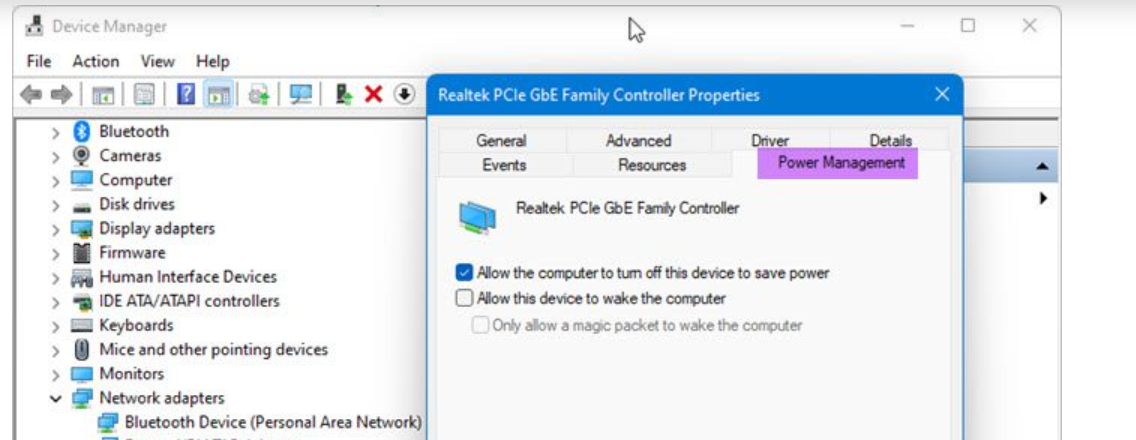
- Wake on LAN on Windows 10/11: Open Device Manager, locate the network adapter, right-click and select Properties. Under Power Management, enable "Allow this device to wake the computer." Under Advanced, confirm "Wake on Magic Packet" is enabled.
- Linux: Use ethtool to check and set the WoL mode: sudo ethtool -s eth0 wol g. Note that this resets on reboot and must be persisted via a systemd service or network config file.
- macOS: Navigate to System Settings, then Battery (or Energy Saver) and enable "Wake for network access."
How Wake on LAN Looks on Windows 11
Step 3: Send the magic packet
At this point, you’ll have your endpoint configured correctly so it’s a case of sending the wake-up call – the magic packet – but this requires a machine that is already running and has network visibility over the target device. This is commonly referred to as an intermediate machine.
In practice, most IT teams identify one machine per subnet to act as the intermediary, then run a script from it to send the magic packet to every device they need to wake. Yet there’s a catch: each command is unique because it contains the target device's MAC address.
That means maintaining an up-to-date inventory of every MAC address across the estate and updating it every time a device is added or removed.
This changes for Linux where you should enter “wakeonlan AA:BB:CC:DD:EE:FF”, substituting the target device's WoL MAC address in hexadecimal format.
Enterprise use cases: Where WoL earns its keep
WoL tends to be underestimated until the moment it fails. Many organisations simply see it as something that works out of the box without realising how it could struggle as they expand their operations.
“WoL is seen as a solved problem,” says Jesús Sánchez Morales, “But in reality, tools that do it well at scale are rare."
In practice, WoL delivers the most operational value in use cases where failure is most visible. Take the example of unattended devices at public-facing locations. Kiosks, video walls, and visitor-facing terminals (such as queue systems, wayfinding displays, check-in points) need to be live before people arrive. When one fails to wake, there often isn’t a user there to report a problem; instead, the issue only comes to light when someone walks by and notices a blank screen.
Another example is scheduled IT maintenance, often a huge time drain for large organisations. Every device that doesn’t boot correctly eats up a few minutes of engineer time, something that can compound dramatically across a large network.
“One of our customers is an educational institution,” says Jenn Keane, Marketing and PR Director at Flexxible. “Their IT maintenance team manually checks that all devices in around 200 classrooms are working properly each morning. Instead of losing minutes booting each one, they use WoL to power on all the devices before maintenance begins.”
Across 200 machines, these minutes add up to several hours that the IT team saves every single day without changing anything else about their workflow.
At enterprise scale, this time saving becomes an operational advantage and an excellent way of improving cost efficiency.
Wake on LAN across subnets: the enterprise blocker
Extending coverage across organizations managing thousands of devices across multiple locations is often beyond the scope of standard WoL. This is because it’s typically confined to the local subnet, which stops UDP broadcasts from crossing routers and the magic packet from reaching a device on a different network segment or VLAN.
Organizations can try various workarounds, but these come at the expense of weaker security and reliability.
- VPN with local broadcast access, where the administrator connects into the target subnet and sends the packet as if local.
- Directed broadcasts that are configured at the router level to forward broadcasts to a specific subnet, however these are disabled by default on most devices for security reasons.
- Wake on WAN, which uses port forwarding to direct a magic packet to the router's public IP, then forwards it to the internal device's MAC address.
All of these actions can be complex, and firewall rules must also permit UDP traffic on ports 7 and 9, which security teams frequently block without realising WoL depends on them.
Wake on Wireless LAN (WoWLAN)
WoWLAN is WoL adapted to WiFi but, like the workarounds above, often makes the process much more complex.
For it to work, the wireless access point must maintain an ARP proxy for the device in sleep mode, and the NIC must remain associated with the network while in low-power mode. This rarely works in practice as it’s impossible to guarantee both conditions across the enterprise Wi-Fi infrastructure.
WoWLAN is most effective when Ethernet is unavailable, but it cannot be used as a remote management method for a large IT infrastructure.
Skip the manual setup: Automate Wake on LAN at scale with Flexxible
Imagine reducing everything in the section above – every subnet workaround, manual script, and MAC address lookup – to three clicks from a single console.
This is what you get with Flexxible. Our platform automates the complexity of sending magic packets at scale — the part that manual WoL setups struggle with most – so your IT team can stop wasting time engineering workarounds and focus on more productive tasks.
In seconds, administrators can:
- Schedule WoL automatically across entire workspace groups at a set time, on chosen days, across any timezone – no pre-device scripting required.
- Let FlexxClient calculate each magic packet automatically using its live MAC address inventory, updated the moment any device begins reporting.
- Tie WoL directly to patch policies, so devices wake, update, and restart without any manual intervention, giving employees a ready-to-go device better digital employee experience.
- Automatically retry failed wake attempts up to three times from a different intermediate machine each time, with a full diagnostics view showing exactly where and why each attempt succeeded or failed.
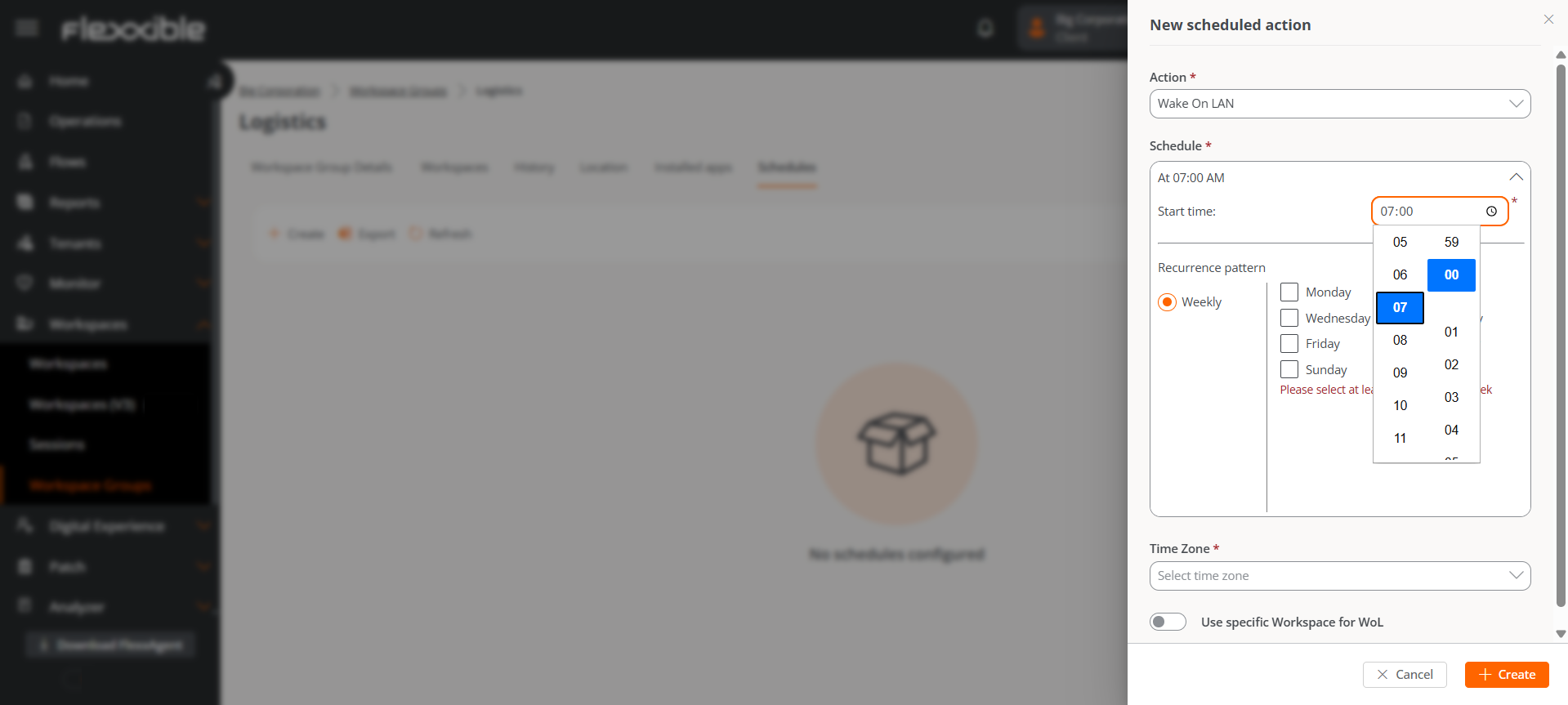
Effective WoL sits inside FlexxClient’s broader endpoint management layer, not as a separate tool but as part of a single console. This means you get unified observability, automated remediation, and native cross-subnet support across your entire estate.
The result? An IT function that spends less time chasing devices and more time driving outcomes. Because in a distributed enterprise, the real measure of a remote management strategy isn't whether you can wake a device – it's what you do with it once it's on.
Ready to make Wake on LAN a reliable part of your endpoint strategy? Check out our WoL tutorial to find out how your IT team can wake, manage, and remediate devices across your entire estate – from a single console.
Recommended for you
- The Next Generation of RMM Is Here – and It's Called DEX. Here's How to Get Ready
- How to Optimize Productivity With These 5 Digital Workspace Essentials
- What is a Digital Workplace? How to Make it a Strategic Advantage in 2026
- How to Understand Gartner Digital Employee Experience in 2026: Which Platforms Are IT Leaders Backing?
- How to Turn Data Into Decisions With AI-Powered Reporting Tools
- What Digital Employee Experience Looks Like in 2026 (And How to Get It Right)
- Securing the New Office: Endpoint Management for a Hybrid Workforce
- Unlock Hidden Microsoft 365 Savings: The Report IT Leaders Need

